
1️⃣ Install IBO Player Pro on Roku
- Turn on your Roku
- Go to Home
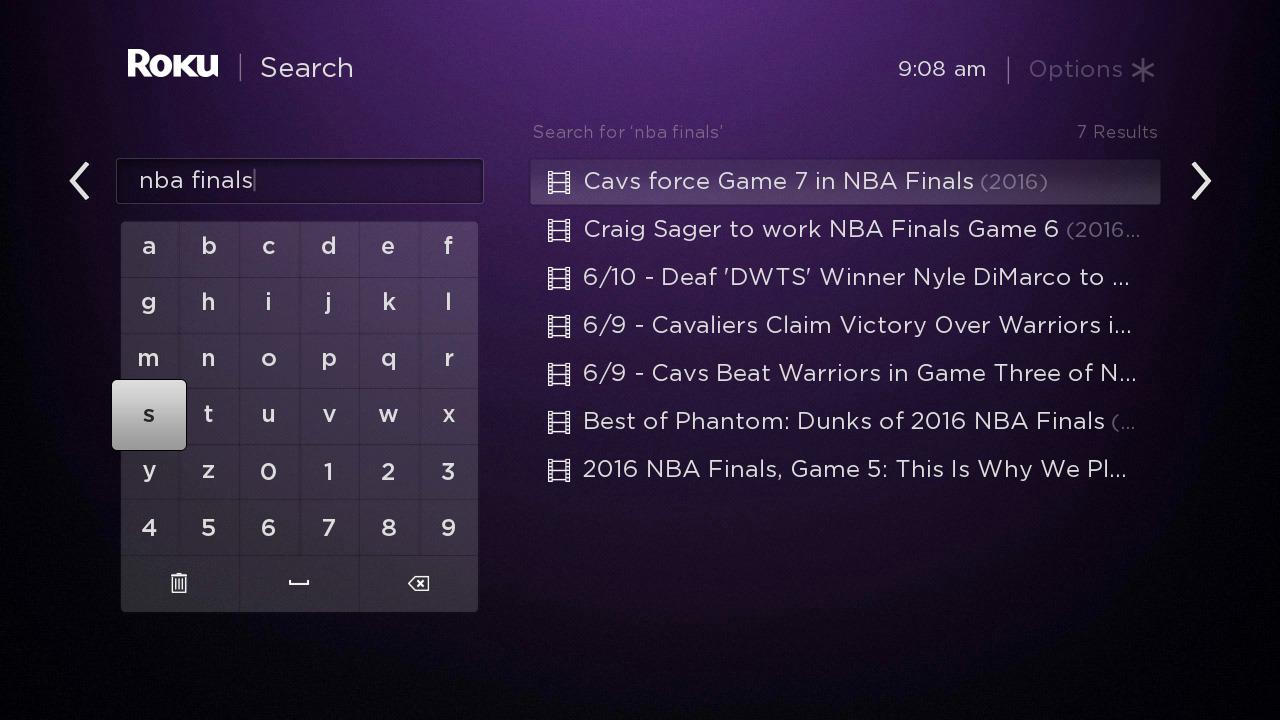
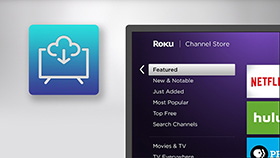
- Open Streaming Channels
- Select Search Channels
- Type IBO Player Pro
- Select IBO Player Pro
- Click Add Channel
- Wait for install → Launch the app
✅ App is now installed.
2️⃣ Get Your MAC / Device ID (VERY IMPORTANT)

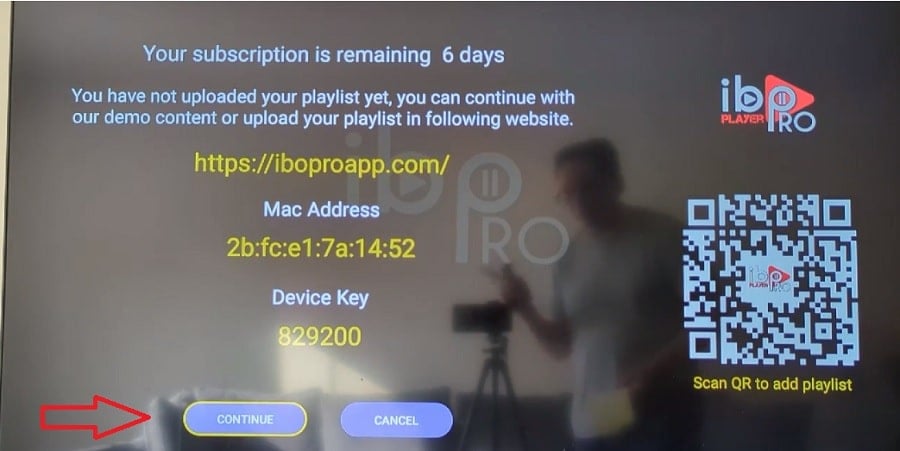

- Open IBO Player Pro on Roku
- You will see:
- MAC Address or Device ID
- Sometimes also a Key
???? Write this down exactly (or take a photo)
3️⃣ Go to the IBO Player Pro Website (Activation)

- On your phone or computer, open a browser
- Go to:
- ???? https://iboplayerpro.com
- Click Manage Playlist or Add Playlist
- Enter:
- MAC Address / Device ID
- Key (if shown on TV)
4️⃣ Add Your IPTV Playlist
You will be asked for ONE of these (your provider gives this):
Option A — Xtream Codes (most common)
- Server URL
- Username
- Password
Option B — M3U Playlist
- M3U URL
- Playlist Name (anything you want)
- Click Save / Submit
5️⃣ Activate / Pay (If Required)
- IBO Player Pro usually requires a one-time activation fee
- Follow the on-screen payment steps on the website
- Activation is tied to your MAC/Device ID
6️⃣ Reload App on Roku
- Go back to IBO Player Pro on Roku
- Press OK or choose Reload / Refresh
- If nothing loads:
- Exit the app
- Reopen it
✅ Channels, movies, and TV should now appear.
✅ DONE — That’s It
???? Key Things to Remember
- Roku does NOT let you install apps from APKs
- Everything is done through IBO Player Pro + website
- Your MAC/Device ID = your activation Key